
Chamebook setup guide
By Ray Cheng
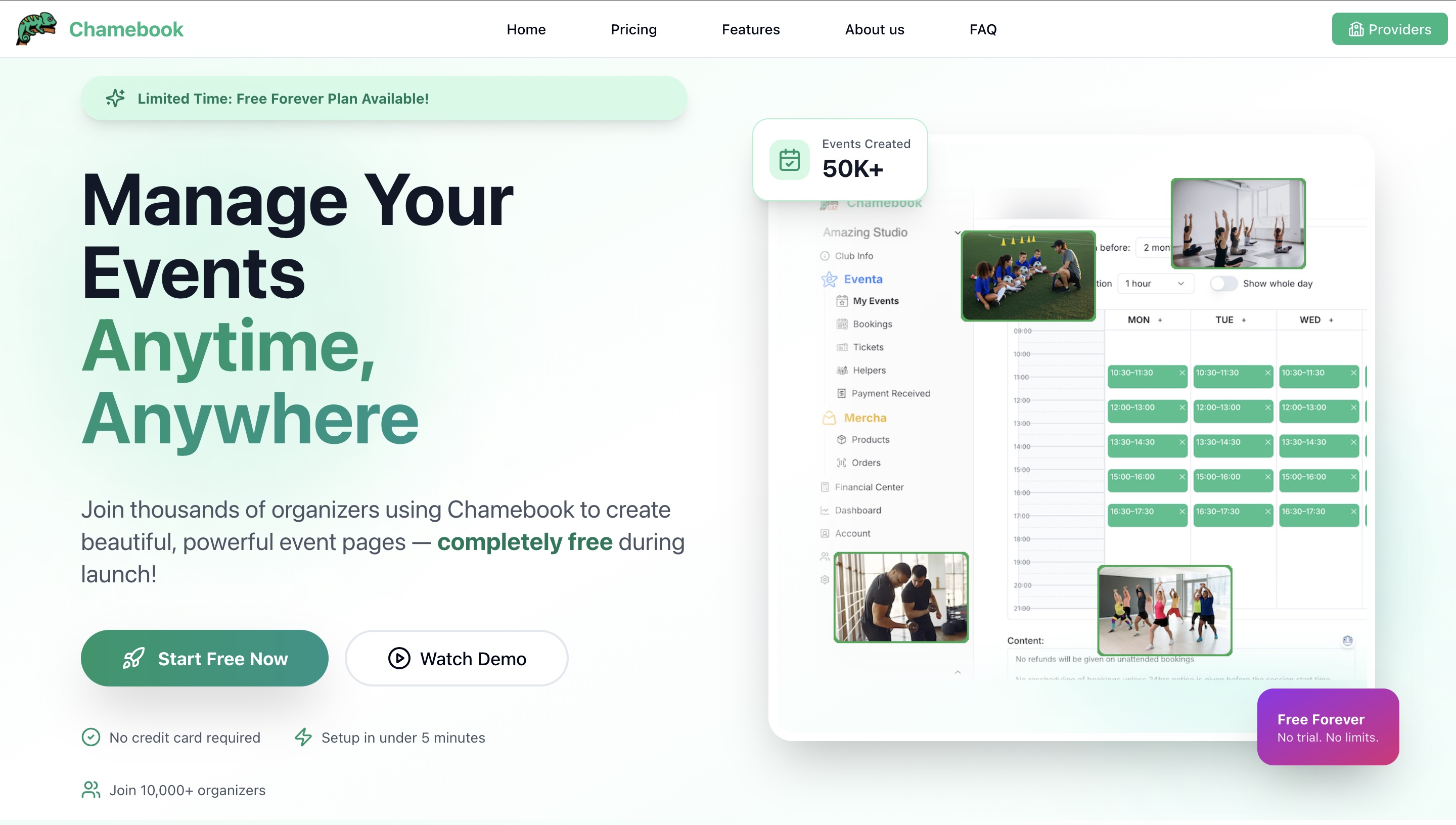
Detailed Chamebook Setup Guide: Get Your Online Booking System Up and Running in Minutes
Chamebook (chamebook.co.uk) makes it incredibly easy to set up a professional online booking system for your small club, studio, coaching business, or charity. No technical skills or credit card required to start — you can go live in under 5 minutes.
This step-by-step guide walks you through the entire process, from creating an account to launching your branded booking page.
Step 1: Create Your Free Account
- Go to chamebook.co.uk.
- Sign up with your email address (no credit card needed).
- If you're a registered charity or NGO, contact our customer service — it includes all premium features, no limits, no fees, and dedicated onboarding support.
- Choose Coursia or Eventa for your main product
- Fill in basic infomation for you club/company
Once registered, you'll be taken straight to your dashboard. Setup is instant!
Step 2: Customize Your Branding (Club)
- In your cms, go to Club Info.
- Upload your logo (high-resolution PNG recommended).
- Select your theme colors
- Add a custom description and save
Your booking page will automatically reflect these changes, giving members a seamless experience that feels like part of your own website.
Step 3: Add Classes or Events
Schedule your offerings with drag-and-drop ease:
- Navigate to Courses/Events
- Click "Add New Course/Event".
- Enter details: name, description, date/time, duration, size, price (if paid). 4a. For Coursia - need to set schedule of each sessions 4b. For Eventa - need to choose one-time / recurring event. If recurring, need to set weekly time-slot
- Setup price in ticket type table
- Must need to connect Stipe if you need online payment in booking flow
- Save all change. Then publish your page.
Step 4: Go Live
- Share your branded URL directly (e.g., chamebook.co.uk/yourstudio).
Free for charities: No platform fees ever.
Step 5: Add Merchandise (Optional)
Sell club kits, apparel, or extras alongside bookings:
- Go to Club Info.
- Enable Mercha
- Add items with photos, descriptions, and prices.
- Members can purchase your product in your page.
Step 6: Embed on Your Website or Share Your Booking Page
Get bookings flowing:
- Direct Booking Link: Share your branded page URL (e.g., yourclub.chamebook.co.uk) via email, social media, or newsletters.
Bonus Tips for a Smooth Launch
- Automated Reminders: Enable email notifications to reduce no-shows (set up in Settings > Notifications).
- Staff Access: Add team members with custom permissions.
- Student Management: Import member lists or let them self-register.
- 24/7 Support: Use the contact form for any questions — quick responses guaranteed.
- Test It Out: Make a test booking yourself to see the member experience.
Why Chamebook Setup is So Easy
- No overwhelming features — everything is intuitive.
- Drag-and-drop scheduling.
- Conflict-free planning.
- Mobile-friendly dashboard.
Thousands of small clubs and studios are already using Chamebook to save hours on admin each week.
Ready to get started? Head to chamebook.co.uk and create your account now — your first bookings could be live today!
If you run into any questions, their support team is available 24/7. Happy booking! 🚀
